
Water in Charging Port: Safe Drying Steps & Fixes
A wet charging connector is different from a muffled speaker. Sound may help with small droplets near a speaker grille, but charging-port pins need time and airflow to dry.
Water in Charging Port: What to Do First
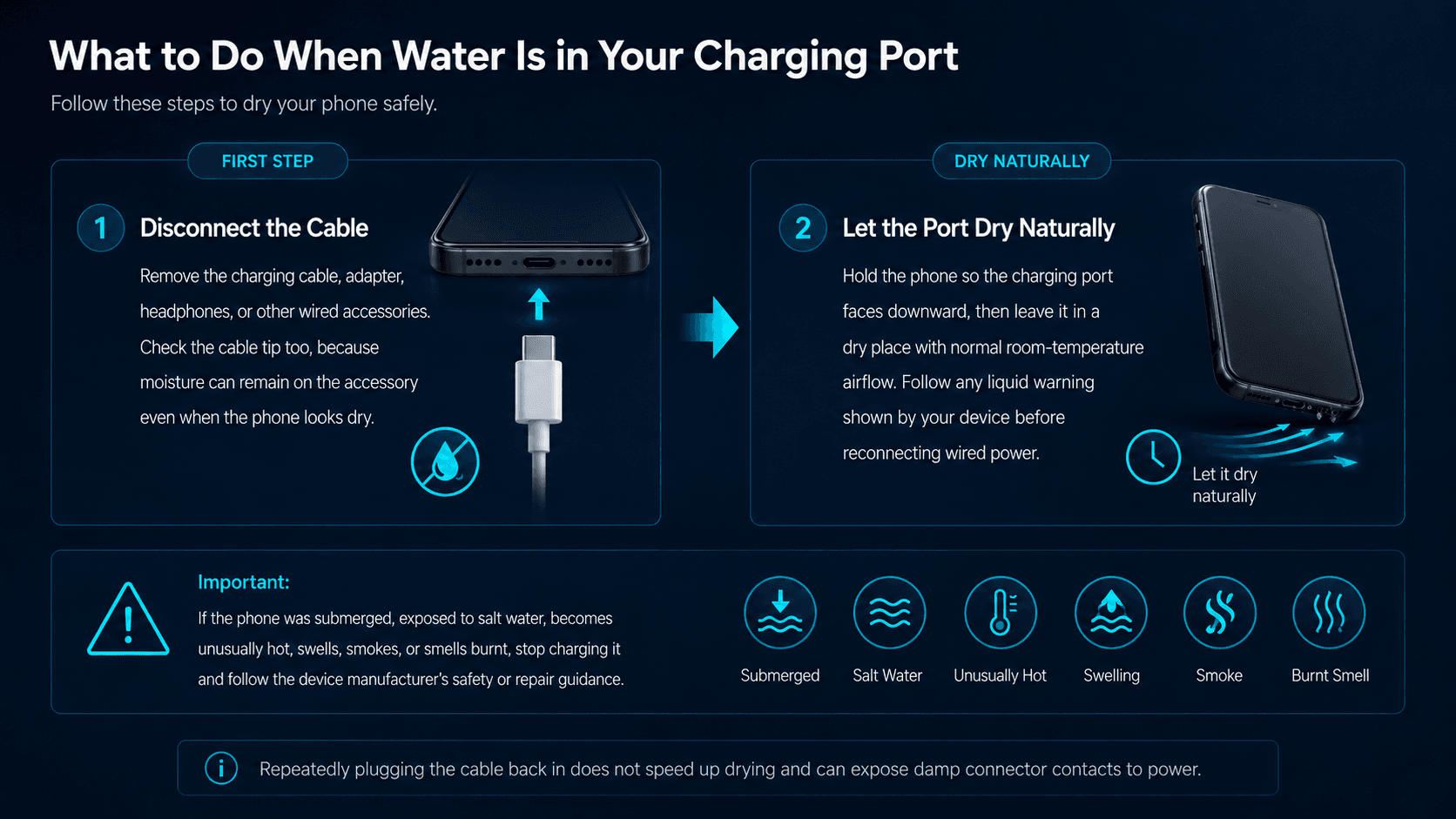
Disconnect wired power as soon as you notice moisture, a liquid-detection alert, or a wet cable tip. Repeatedly plugging the cable back in does not speed up drying and can expose damp connector contacts to power.
Disconnect the Cable
Remove the charging cable, adapter, headphones, or other wired accessories. Check the cable tip too, because moisture can remain on the accessory even when the phone looks dry.
Let the Port Dry Naturally
Hold the phone so the charging port faces downward, then leave it in a dry place with normal room-temperature airflow. Follow any liquid warning shown by your device before reconnecting wired power.
Water in Charging Port: Safe Drying Steps
The safest approach is simple: remove power, let gravity help, and allow time for evaporation. Avoid aggressive methods that can push liquid deeper or damage connector pins.
Disconnect anything attached to the port and keep wired charging off while moisture may still be present.
Hold the device with the port pointing downward. If your manufacturer recommends gentle tapping or shaking, follow that device-specific method only.
Place the phone in a dry, ventilated area. Wipe only the outside of the device with a clean, lint-free cloth.
Do not reconnect a cable just because the outside looks dry. Wait for the device alert to clear and follow the manufacturer’s recommended drying time.
Water in Charging Port: What Not to Do
Fast drying tricks can cause more trouble than the original moisture. Keep the connector cavity free of heat, pressure, and foreign objects.
Do Not Use Heat
Do not use a hair dryer, heat gun, heater, or microwave. External heat can damage seals, adhesives, the connector, or battery components.
Do Not Use Rice
Rice does not safely dry connector pins and can introduce particles into the port. Apple specifically advises against putting a wet iPhone in rice.
Do Not Insert Objects Into the Port
Do not push cotton swabs, paper, toothpicks, needles, or metal tools into the connector. They can leave debris, bend contacts, or hold moisture against the pins.
High-pressure air can move moisture or debris deeper into the connector. Passive room-temperature drying is the safer default.
Speaker Moisture vs Water in Charging Port
These problems can happen after the same splash, but they need different responses. A speaker has a moving diaphragm and external grille; a charging connector contains electrical contacts.
| Problem | What Helps | What Not to Assume |
|---|---|---|
| Muffled speaker after a light splash | Short speaker playback, gentle exterior drying, and time may help with minor surface moisture. | Clearer sound does not prove the inside of the phone is dry. |
| Wet Lightning or USB-C charging port | Disconnect the cable, keep the port down, use room-temperature airflow, and wait. | A speaker sound cycle does not dry connector pins. |
If the problem is muffled audio rather than the charging connector, use our Speaker Cleaner guide for speaker testing.
Can Water Eject Help With Water in Charging Port?
No. Water Eject sound is designed around speaker vibration. It may help move small droplets near a speaker grille, but it does not create a drying action inside a Lightning or USB-C connector.
Why Speaker Sound Cannot Clear Water in Charging Port
Charging-port contacts do not work like a speaker diaphragm. Playing a tone does not remove moisture trapped around connector pins, so keep the cable disconnected and use passive drying instead.
Water in Charging Port: iPhone Liquid Detection Alert
On supported iPhones, a liquid-detection alert can appear when moisture is detected in the Lightning or USB-C connector or on the attached cable. Disconnect the accessory rather than repeatedly trying to charge through the warning.
Apple’s liquid-detection guidance says to wait at least 30 minutes in a dry area with airflow before trying the cable again. If the alert returns, complete drying can take up to 24 hours. For an iPhone that was directly exposed to liquid, Apple’s water-exposure guidance advises waiting at least five hours before connecting a cable or accessory.
If an alert remains after the recommended drying period, or the phone will not charge with a known-good dry cable after the warning clears, contact Apple or an authorized service provider rather than inserting tools into the port.