
Water Eject Shortcut for iPhone: Setup & Safety
Get a Water Eject Shortcut for iPhone. Add it to Shortcuts, run it, and use Siri if you want.
The shortcut below is third-party. It is not made or endorsed by Apple. Review its actions before you add it.
Get the Water Eject Shortcut
Open the Water Eject listing on RoutineHub. RoutineHub lists it as Water Eject by Josh0678. Tap Get Shortcut, then review the actions in Apple Shortcuts before adding it.
Get Water Eject Shortcut Third-party listing. Not made by Apple or Water Eject Hub. The listing can change or become unavailable.Editorial review: Water Eject Hub checked this guide against Apple Shortcuts, Siri, and liquid-safety documentation on 31 August 2026.
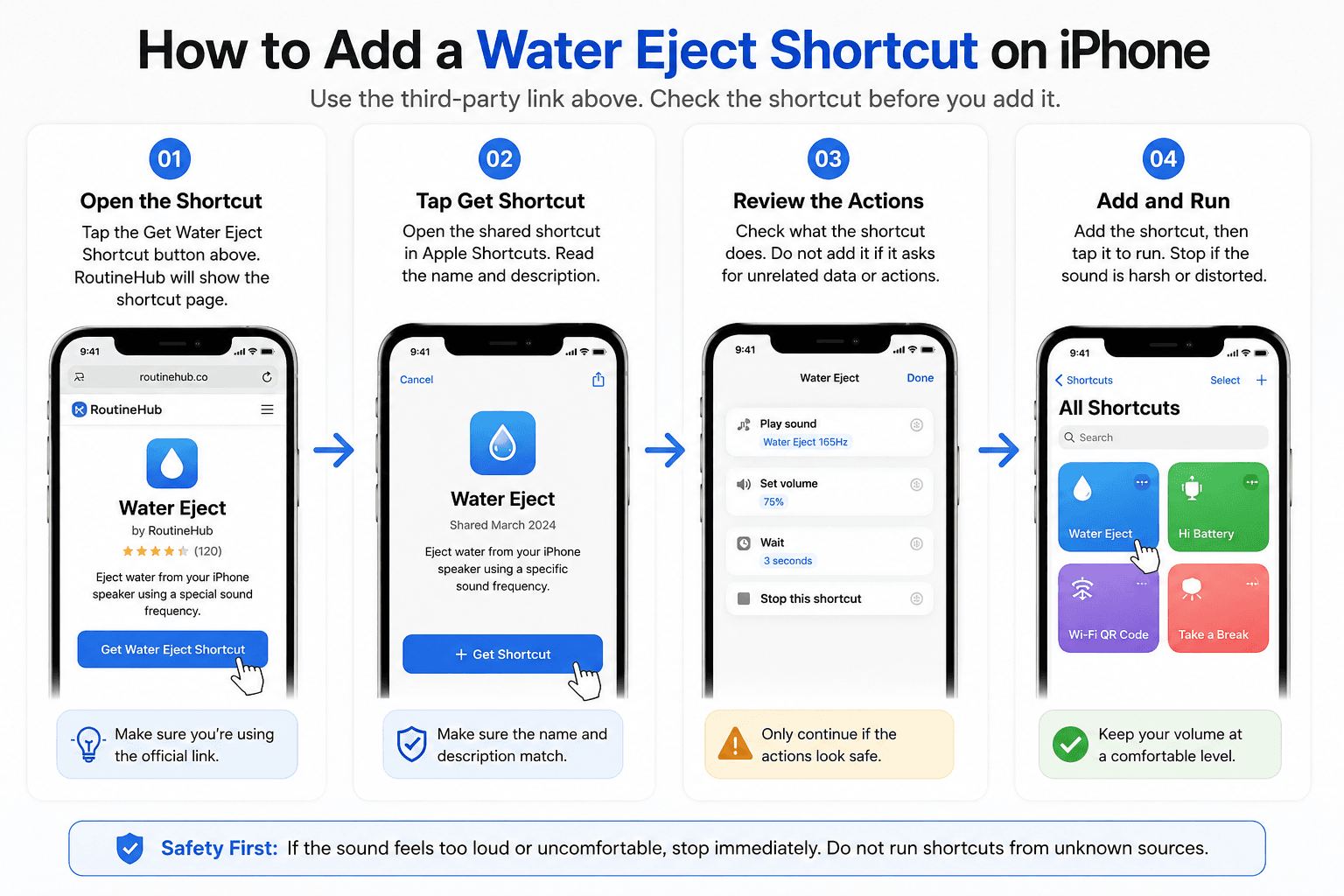
How to Add a Water Eject Shortcut on iPhone
Use the third-party link above. Check the shortcut before you add it.
Open the Shortcut
Tap the Get Water Eject Shortcut button above. RoutineHub will show the shortcut page.
Tap Get Shortcut
Open the shared shortcut in Apple Shortcuts. Read the name and description.
Review the Actions
Check what the shortcut does. Do not add it if it asks for unrelated data or actions.
Add and Run
Add the shortcut, then tap it to run. Stop if the sound is harsh or distorted.
What Does a Water Eject Shortcut Actually Do?
A shortcut is a list of actions. The exact actions can vary.
A Shortcut Runs Actions
Apple Shortcuts runs actions in order. A shared Water Eject shortcut may play or open audio.
Sound Has Limits
Speaker movement may help shift small drops near the speaker grille. It cannot dry the inside of the phone. See How Water Ejection Works for the limits.
It Is Not a Water Sensor
The shortcut cannot detect water or prove the phone is dry.
Is a Water Eject Shortcut an Official Apple Feature?
Apple makes the Shortcuts app. It does not mean Apple made every shared shortcut.
Apple Makes the Shortcuts App
Apple provides the Shortcuts app and supports shared shortcuts.
This Water Eject Shortcut Is Third-Party
The RoutineHub shortcut linked on this page is by Josh0678. It is not presented as an Apple-made feature.
How to Run a Water Eject Shortcut With Siri
After you add the shortcut, Siri can run it by name.
Use a Clear Name
Keep a simple name, such as “Water Eject.”
Ask Siri
Say the shortcut name to Siri. Siri can run shortcuts in your collection.
You May Need to Unlock
If an action opens an app or protected data, Siri may ask you to unlock the iPhone.
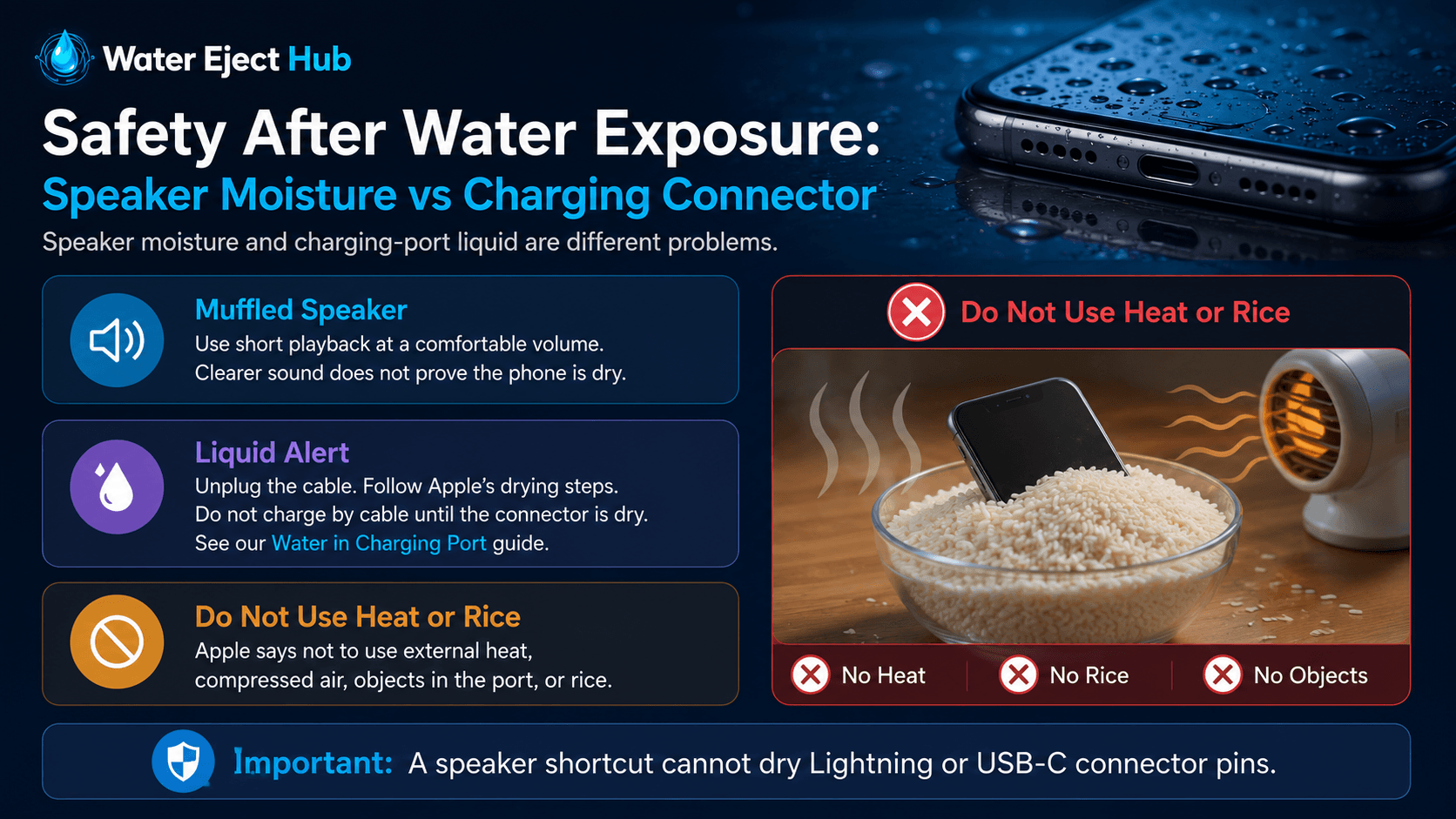
Safety After Water Exposure: Speaker Moisture vs Charging Connector
Speaker moisture and charging-port liquid are different problems.
Muffled Speaker
Use short playback at a comfortable volume. Clearer sound does not prove the phone is dry.
Liquid Alert
Unplug the cable. Follow Apple’s drying steps. Do not charge by cable until the connector is dry. See our Water in Charging Port guide.
Do Not Use Heat or Rice
Apple says not to use external heat, compressed air, objects in the port, or rice.
What to Do if the Water Eject Shortcut Will Not Run
Try these simple checks.
Shortcut Does Not Open
Open the RoutineHub page again and use its Get Shortcut button. Make sure Apple Shortcuts is installed.
Siri Does Not Run It
Run the shortcut once by hand. Check its name. Unlock the iPhone if Siri asks.
No Sound
Check media volume. Disconnect Bluetooth if you want sound from the iPhone speaker. For a broader audio check, use Speaker Cleaner.
Official Apple Documentation Used for This Guide
Apple links used for the Shortcuts, Siri, and liquid-safety facts on this page.
Sharing Shortcuts
Apple explains how shared shortcuts and iCloud links work.
Apple: Share shortcuts on iPhone or iPadLiquid Safety
Apple explains what to do when a connector is wet.
Apple: If you see a liquid-detection alertFrequently Asked Questions About Water Eject Shortcut
Quick answers about the iPhone shortcut.
No. Apple makes the Shortcuts app, but this Water Eject shortcut is third-party.
Yes. Siri can run shortcuts in your collection by name.
No. Sound may help some surface moisture near the speaker. It cannot dry the whole phone.
No. A liquid alert is about the charging connector or cable. Follow Apple’s drying steps.
No. Use a source you trust and review the shortcut’s actions before adding it.
Use the browser Water Eject tool instead. It works without importing a shortcut.