
Android Guide — Water Eject Android: Help Clear Water From Your Android Speaker
Android guide: Play controlled sound sweeps that may help move surface moisture away from your Android speaker grille. Follow 5 practical steps, troubleshooting tips, and Android-specific guidance.
Hold the phone with the affected bottom speaker area angled downward over a dry cloth so any moisture near the opening can drain naturally.
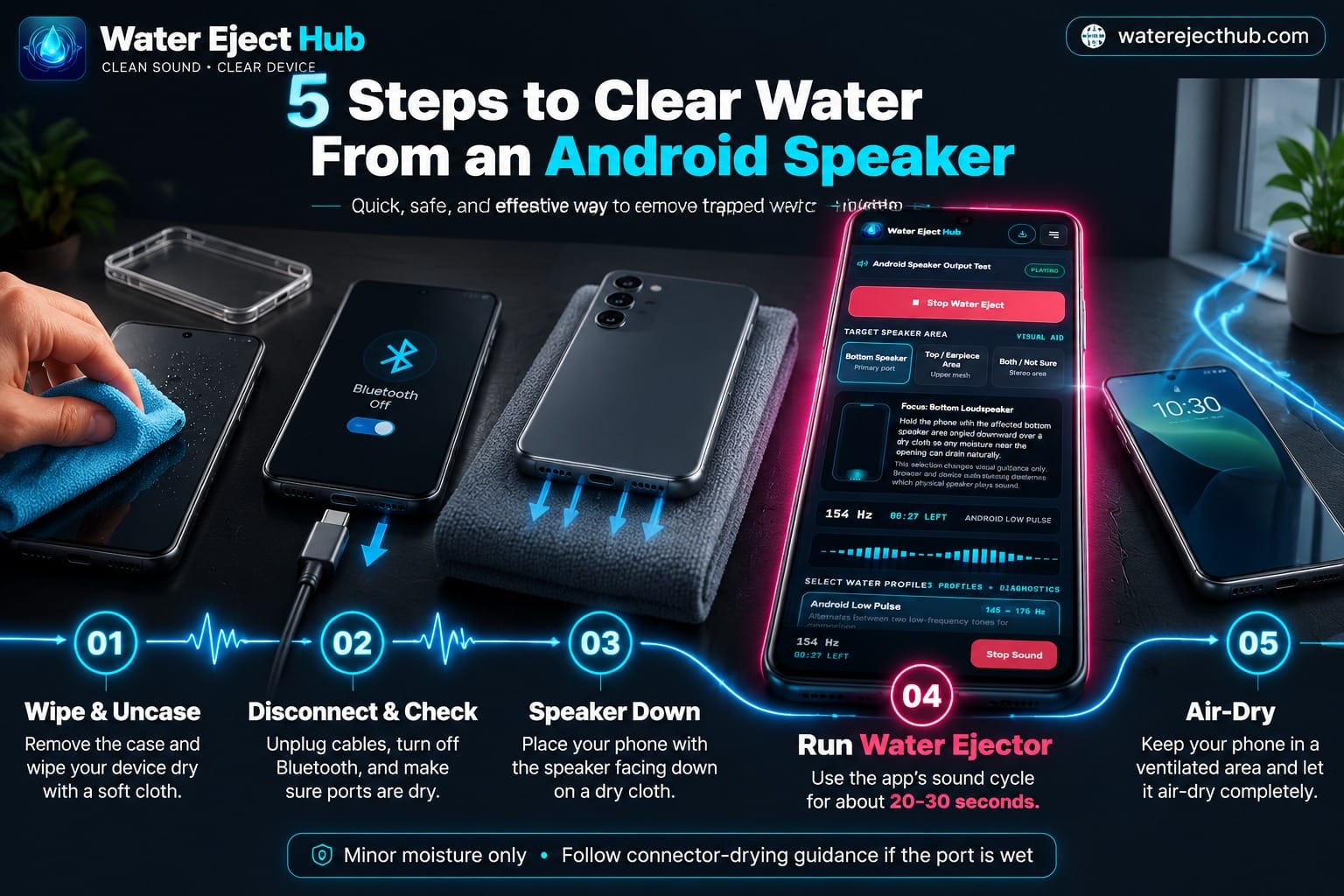
Android Guide: 5 Steps to Clear Water From an Android Speaker
This Android guide provides a practical workflow following minor moisture exposure on Android phones.
1. Dry Exterior & Remove Case
Wipe the phone exterior with a clean microfiber cloth. Remove any protective case that may trap water against speaker grilles.
2. Check Cables & Bluetooth
If the phone or connector may be wet, disconnect charging cables and avoid charging until the connector is dry according to manufacturer guidance.
Check Bluetooth settings to ensure playback routes through the phone speakers rather than wireless accessories.
3. Position Speaker Downward
Hold the phone with the muffled speaker port angled downward toward a dry cloth so gravity assists drainage.
4. Run a Sound Cycle
Select Android Low Pulse or Step Cycle above. Start at a comfortable low-to-moderate volume and let the 30-second cycle complete.
5. Allow Passive Air Drying
Let the phone rest in a dry, well-ventilated area at room temperature. Allow natural airflow to evaporate residual micro-droplets over several hours.
How Sound Vibration Works on Android Speakers
Understanding sound vibration and physical boundaries on mobile speakers.
Speaker Diaphragm Motion
Playing sound causes the phone speaker diaphragm to vibrate. In some cases, that movement may help shift small amounts of moisture resting near the external speaker grille. Results vary between devices.
Sound cannot dry internal electronics, reverse liquid corrosion, or repair damaged hardware.
Acoustic Boundaries
Sound sweeps are intended only for minor surface moisture near an operational speaker grille. For a detailed breakdown of acoustic physics and sound mechanisms, visit our dedicated How Water Ejection Works guide.
Need broader speaker diagnostics? Use the Speaker Cleaner tool.
Where Is the Speaker on Your Android Phone?
Understanding different speaker configurations across various Android device designs.
Primary Lower Loudspeaker
Many Android phones place a primary loudspeaker along the lower frame, while some models also use an upper receiver for stereo playback. Exact speaker placement varies by model.
Top Earpiece / Upper Mesh
Upper earpiece openings often feature a fine mesh that can temporarily hold micro-droplets after splashes. Inspect the upper bezel if incoming call audio sounds muffled.
Stereo Channel Balance
If audio sounds uneven across channels after water exposure, use the Browser Stereo Routing controls in the toolbox to verify left and right channel output.
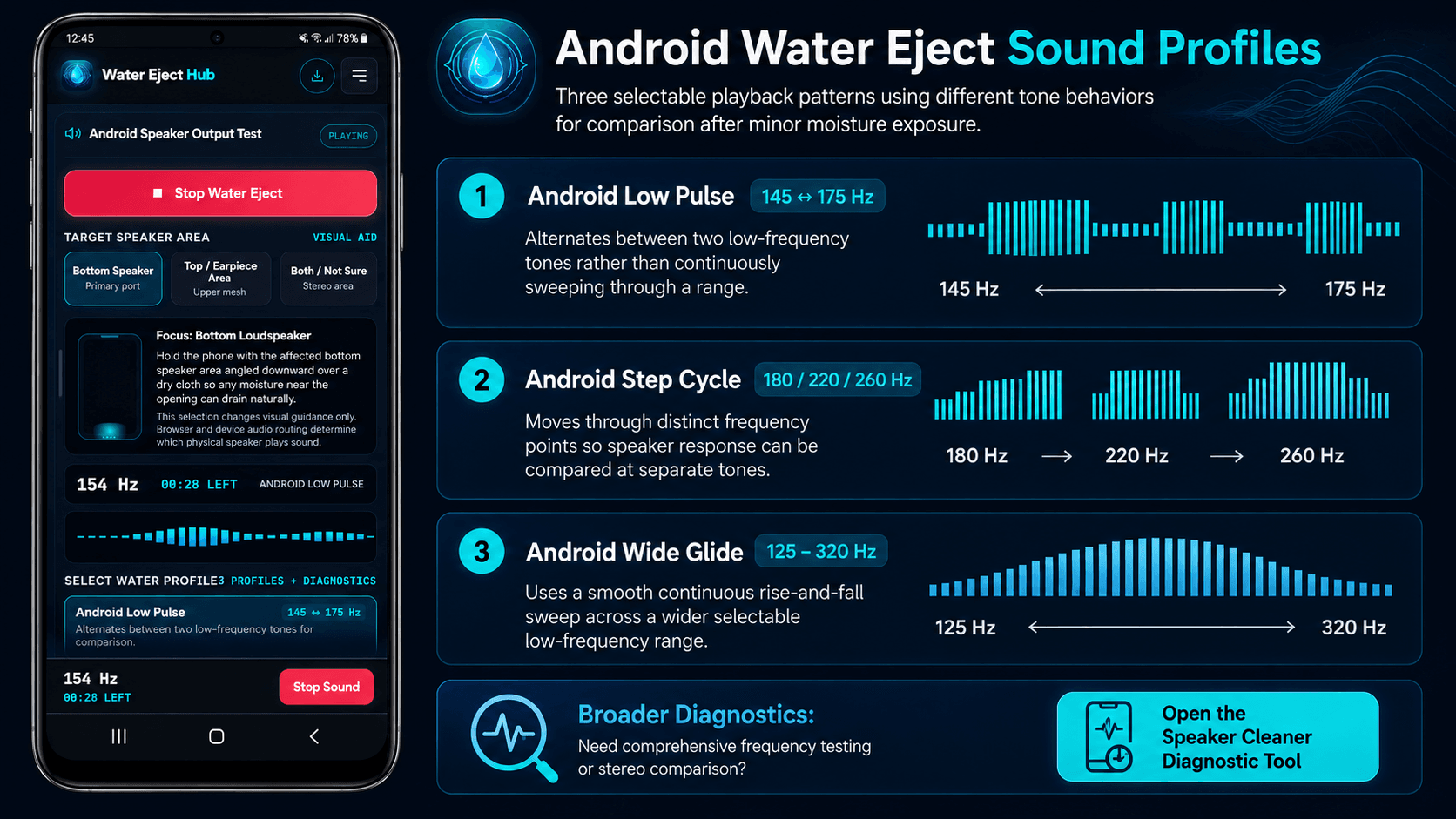
Android Guide: Water Eject Sound Profiles
This Android guide compares three selectable playback patterns using different tone behaviors after minor moisture exposure.
Android Low Pulse (145 ↔ 175 Hz)
Alternates between two low-frequency tones rather than continuously sweeping through a range.
Android Step Cycle (180 / 220 / 260 Hz)
Moves through distinct frequency points so speaker response can be compared at separate tones.
Android Wide Glide (125–320 Hz)
Uses a smooth continuous rise-and-fall sweep across a wider selectable low-frequency range.
Safety, Heat and Hardware Limitations
Essential precautions when drying any smartphone speaker.
Volume Precautions
Start at low-to-moderate volume. Do not force high volumes if playback produces harsh buzzing, crackling, or abnormal rattling.
Avoid Heat Sources
Do not use hair dryers, microwave ovens, hot air guns, or radiators. External heat can damage the phone, battery, or protective seals.
No Foreign Objects
Do not poke needles, toothpicks, or cotton buds into speaker mesh or USB-C ports. These objects can damage the speaker mesh, connector, or protective membranes.
Official Manufacturer Liquid Exposure Guidelines
This Android guide links directly to official support documentation from major Android device makers.
Samsung Galaxy Devices
Samsung advises drying wet speaker, earpiece, and USB areas with a clean, soft cloth and avoiding compressed air.
Google Pixel Devices
Google advises turning a wet Pixel off, drying it with a soft cloth, and leaving it on a flat surface to finish drying at room temperature.
How This Android Guide Is Reviewed
Clear review standards, source selection, limitations, and update information.
Review Scope and Sources
Water Eject Hub checks the visible controls, playback descriptions, safety limits, and internal links used on this page.
Technical descriptions reference the W3C Web Audio API. Liquid-exposure advice is compared with the Samsung and Google support pages linked above.
Transparency and Corrections
This Android guide does not claim to detect moisture, repair hardware, dry internal components, or guarantee water removal.
Editorial owner: Water Eject Hub. Last reviewed: .
To report an error or outdated source, use the Support page.
Android Guide: Frequently Asked Questions About Water Eject Android
Answers to common questions regarding Android speaker moisture removal.
The browser uses Web Audio to generate playable tones through the phone speaker.
Speaker movement may help shift small amounts of moisture near the external grille, but results vary and the sound cannot dry internal electronic components.
No app installation is required. This web tool runs directly in Chrome, Firefox, Samsung Internet, or any Web Audio-compatible browser on your Android device.
There is no universally best or calibrated water-eject frequency for every Android phone.
Speaker hardware varies between devices.
This tool provides several user-selectable playback patterns for comparison, but the frequencies are not manufacturer-approved or scientifically established as universal water-removal settings.
No. Sound vibrations move air through speaker drivers, not charging port pins. Do not connect chargers while moisture warnings are active. Allow the port to air-dry naturally.
Allow the device several hours of passive drying in a dry, well-ventilated area at room temperature.
If muffled or distorted audio continues after appropriate drying, follow the device manufacturer’s troubleshooting guidance or consider qualified service.