
How to Get Water Out of Your Phone
- Disconnect power: Never plug in a wired charger while the phone is damp.
- Power off: Shut down the device to prevent short circuits.
- Remove cases: Detach covers that trap moisture against frame seams.
- Pat dry: Wipe exterior surfaces with a soft microfiber cloth.
- Ventilate: Rest the phone upright in a dry, ventilated room.
1. How to Get Water Out of Your Phone Immediately
Act quickly to limit electrical damage and corrosion. Follow this sequence:
Immediately detach charging cables, wired headphones, and adapters.
Power down the phone immediately to stop active electrical currents.
Remove protective cases to prevent moisture trapping against seams.
Dab moisture from glass, frame, and camera lenses with a lint-free towel.
Point speakers and ports downward so gravity assists liquid drainage.
Leave the phone upright in a dry room with steady ambient airflow.
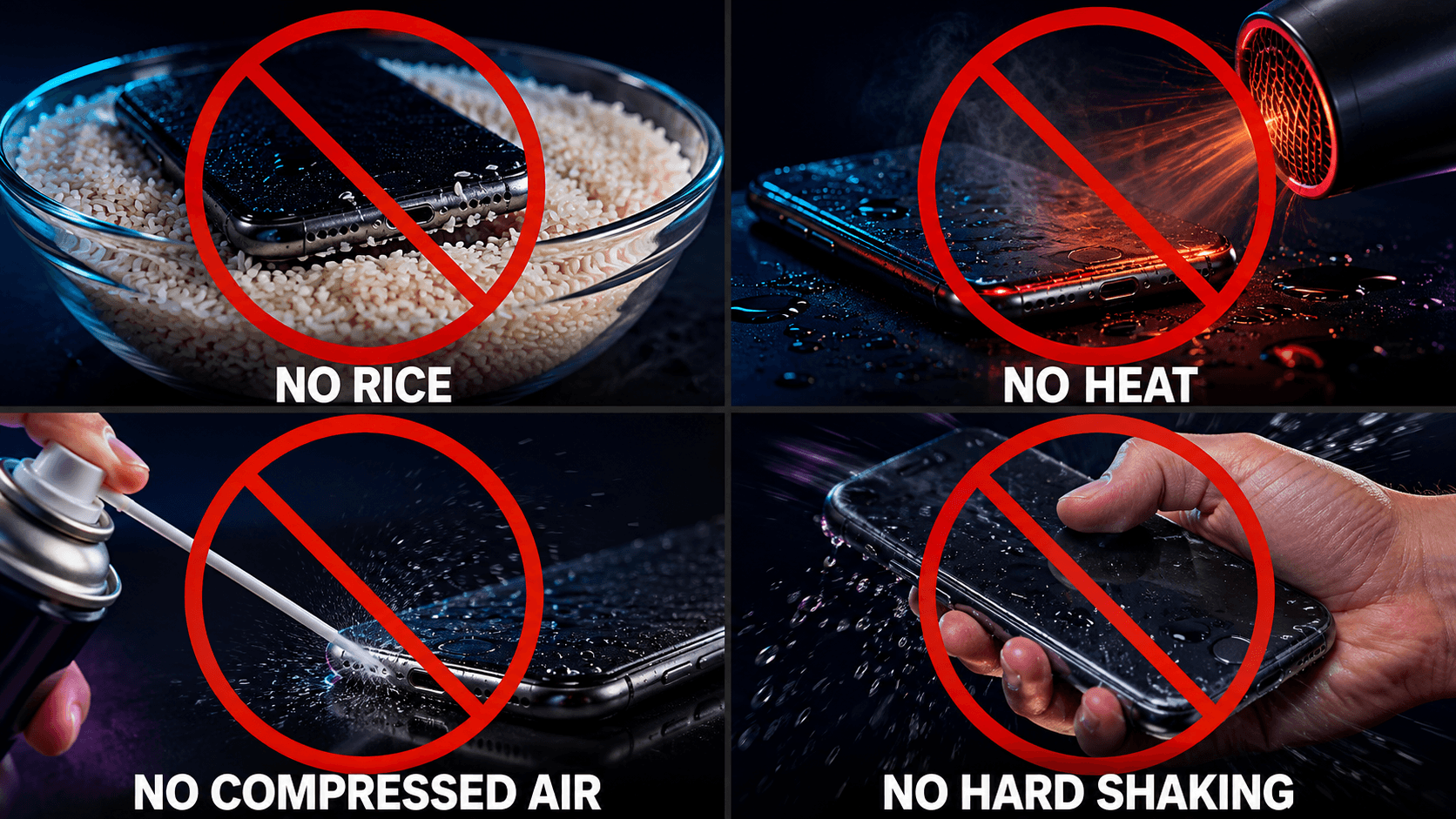
Do not shake the phone forcefully, use compressed air, or press buttons repeatedly. Only tap or shake gently when the manufacturer recommends it for your device.
2. How to Get Water Out of Your Phone Speaker
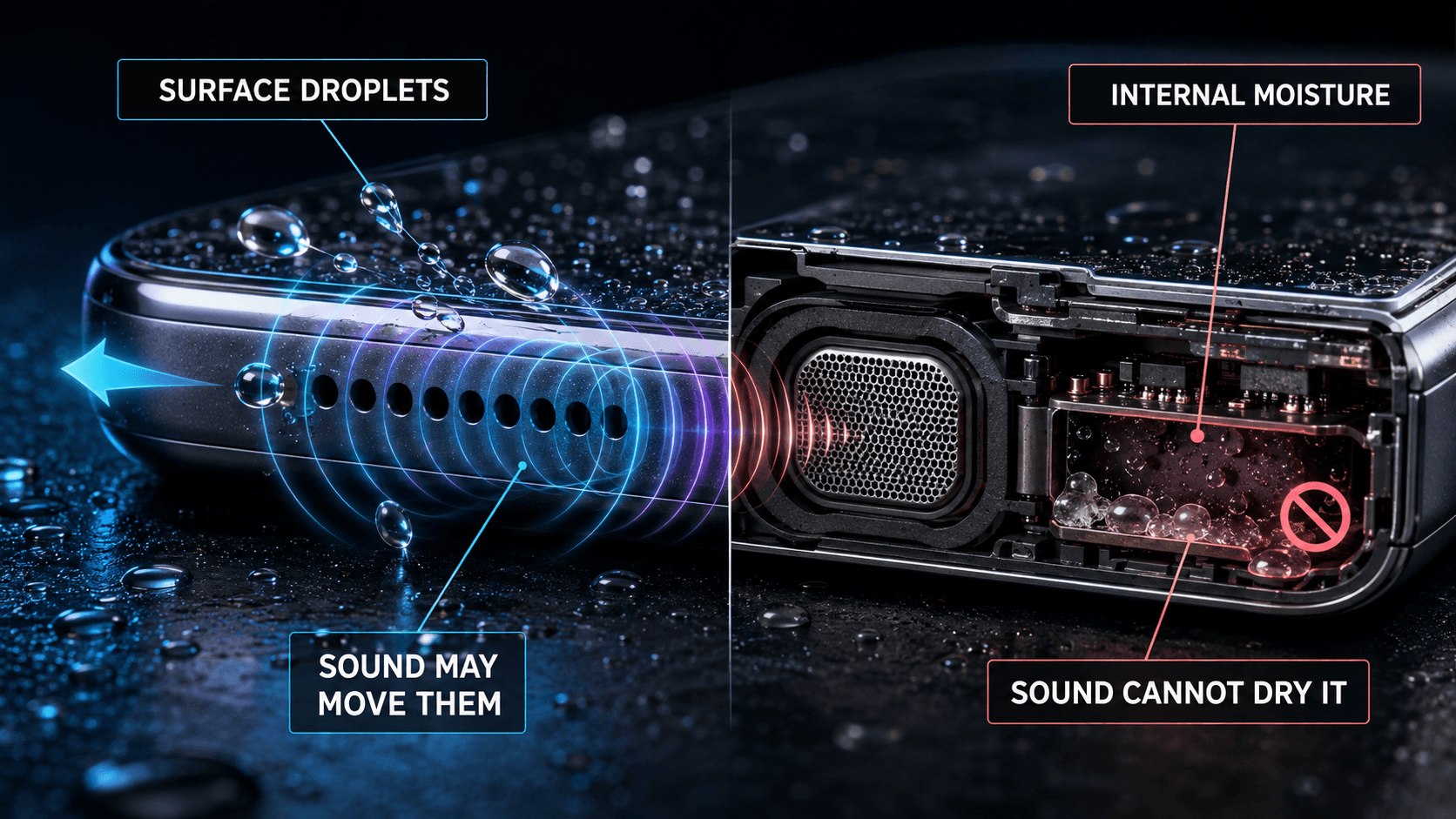
Water on the external speaker mesh can make audio sound muffled or distorted.
Acoustic Mesh Moisture
Low-frequency vibration may help shift droplets on the exterior grille.
Deep Liquid Ingress
Sound cannot clear moisture that has passed internal seals.
Using Sound Frequency Playback Safely
Once the exterior is dry, low-frequency sound may help shift surface droplets. Use it safely:
- Angle speaker ports downward so ejected droplets fall away freely.
- Start at moderate volume and stop immediately if you hear mechanical distortion.
- Use short playback attempts and stop if you hear distortion, rattling, or unusual vibration.
- Never insert pins, swabs, or toothpicks into speaker mesh openings.
Test Speaker-Cleaning Frequencies Online
Use our browser-based frequency generator to play low-frequency sound tones designed to help shift liquid droplets from external speaker grilles.
Try Speaker Water Eject Tool Disclaimer: For external speaker moisture only—not charging ports or internal liquid damage.For dedicated audio testing, explore our Speaker Cleaner tool. Sound playback cannot detect moisture levels or repair torn speaker membranes.
3. Handling Water in the Charging Port
When learning how to get water out of your phone, treat charging-port moisture separately from speaker moisture. A wet connector may corrode pins and cause permanent damage to the phone, cable, or accessory.
Never connect a wired charger while a moisture alert is active. Do not insert swabs, paper, toothpicks, or pins into the port.
Safe Port Drying Procedure
- Hold the phone with the charging port pointing downward.
- Gently tap the back of the phone against your palm to dislodge pooled droplets.
- Leave the phone upright in a dry area with gentle room-temperature airflow.
- Allow the device to dry naturally and follow the waiting period specified by its manufacturer.
- If your manufacturer permits wireless charging, ensure the exterior is completely dry before placing it on a compatible wireless charger.
For detailed troubleshooting regarding persistent port alerts, read our dedicated Water in Charging Port Guide.
4. Safe Drying Methods & Manufacturer Guidance
Safe guidance on how to get water out of your phone relies on non-invasive methods. Check the instructions for your exact device:
Microfiber Towels
Use a soft, lint-free cloth to remove surface liquid.
Passive Airflow
Gentle room-temperature airflow supports natural evaporation.
Room-Temperature Resting
Keep openings unobstructed in a dry, ventilated area.
Manufacturer-Specific Timing Guidance
| Manufacturer / Ecosystem | Recommended Procedure | Drying Timing & Official Source |
|---|---|---|
| Apple iPhone (Liquid Alert) | Tap gently against hand with connector down; rest in dry area with airflow. | Retry after 30 min; full drying up to 24 hrs. Apple liquid-detection guidance |
| Apple iPhone (General Exposure) | Wipe with lint-free cloth; leave in dry ventilated space. | Wait at least 5 hours before wired charging. Apple handling guidance |
| Google Pixel | Power off, let dry at room temperature, keep port clear. | Wait until "OK to use USB port" notification appears. Google Pixel USB-port guidance |
| Samsung Galaxy | Disconnect the charger and gently shake the device to help remove port moisture. | Allow natural evaporation; Samsung says this may take about 1–2 hours. Samsung moisture-alert guidance |
5. Dangerous Drying Methods You Must Avoid
Knowing how to get water out of your phone also means avoiding harmful shortcuts. These popular drying hacks can damage the phone or contaminate its ports:
Rice does not reliably dry electronics, and grains or starch dust can enter ports and speaker grilles.
Heat can damage adhesives, seals, batteries, and displays. Never use hair dryers, ovens, or microwaves.
Compressed air may force liquid or debris deeper into openings. Follow the manufacturer’s drying instructions.
Vigorous shaking may spread surface water deeper inside the device.
6. Handling Different Types of Liquid Exposure
Minerals, salt, and sugar change the risk and cleanup needs:
Tap / Rain Water
Leaves less residue, but can still cause corrosion. Power off, pat dry, and follow model guidance.
Salt Water
Salt crystals accelerate corrosion. Check model-specific cleaning guidance.
Chlorinated Water
Can leave residue. Power off, wipe gently, and follow manufacturer guidance.
Sugary Drinks & Coffee
Sticky residue can clog buttons and speaker mesh. Follow exterior-cleaning guidance.
7. Key Differences Between iPhone and Android Devices
Liquid alerts and audio controls vary by device:
iPhone Liquid Detection
Supported iPhones can show a liquid alert for the Lightning or USB-C connector. Apple says you may retry after at least 30 minutes, but complete drying can take up to 24 hours.
Read our complete Water Eject iPhone Guide.
Android Moisture Warnings
Supported Samsung Galaxy and Google Pixel devices can show a USB-port moisture warning. For sound playback, adjust Media Volume rather than ringtone volume.
Read our complete Water Eject Android Guide.
8. Water Resistance Is Not Waterproofing
IP67 or IP68 does not make a phone permanently waterproof:
- Resistance degrades: Drops, repairs, and normal wear can weaken seals.
- Other liquids raise risk: Salt water, chlorine, soda, and juice leave damaging residue.
- Warranty terms vary: Liquid damage is generally excluded from standard warranties. Coverage depends on your specific model, protection plan, and consumer laws.
9. When Is Professional Hardware Repair Necessary?
Sometimes the safest answer to how to get water out of your phone is professional inspection. Stop using the phone and seek professional help if you notice:
- The phone will not power on or is stuck in a restart loop.
- The display flickers, shows vertical lines, or loses touch response.
- Trapped moisture or heavy condensation remains behind camera lenses.
- The device becomes abnormally hot during standby or light use.
- The charging port displays a moisture warning that persists after recommended drying.
- Audio from speakers or earpieces remains distorted or silent after drying.
If the battery swells, smells chemical, smokes, or becomes excessively hot, stop handling the phone. If safe, place it on an open, non-flammable surface away from combustible materials and contact emergency services or a qualified provider. Never puncture, press, or charge it.
10. How to Get Water Out of Your Phone: Quick Decision Guide
| Situation | Recommended Immediate Action |
|---|---|
| Muffled Speaker After Splash | Point speaker downward, play low-frequency sound at moderate volume, and let air-dry. |
| Liquid Detected in Port | Unplug cable immediately, angle port downward, and let dry naturally with room airflow. |
| Fully Submerged in Water | Power off immediately, remove case, pat dry gently, and allow extended passive drying. |
| Salt Water or Sugary Liquid | Power off, wipe exterior gently, check model cleaning guidance, and seek professional inspection. |
| Camera Lens Condensation Remains | Keep the device powered down. If condensation remains after the manufacturer-recommended drying period, worsens, or affects camera operation, seek professional inspection. |
| Moisture Warning Clears but Charging Fails | Only after the port is confirmed completely dry, test with a known-good, fully dry compatible cable. If charging still fails, contact an authorized repair provider. |
| Phone Will Not Power On | Keep the device powered off, do not plug in a charger, and consult an authorized repair provider. |
| Battery Heat, Swelling, or Odor | Stop handling the device immediately. If safe, place it on an open, non-flammable surface away from combustible materials, then contact appropriate emergency services, the device manufacturer, an authorized service provider, or a qualified repair professional. |
11. Frequently Asked Questions
Can sound really get water out of a phone?
How long should a wet phone dry before turning it back on?
Why should I never put my phone in rice?
Can I charge my phone if it got wet?
Why does my phone speaker still sound muffled after drying?
Can acoustic water eject sound fix internal water damage?
What should I do if my phone was dropped in salt water or ocean water?
When should I take my phone to a professional repair technician?
12. How to Get Water Out of Your Phone: Official Sources & Next Steps
For manufacturer-recommended liquid exposure guidance for your specific smartphone model, consult official documentation:
- Apple liquid-detection guidance: If you see a liquid alert on your iPhone
- Apple handling guidance: About splash, water, and dust resistance of iPhone
- Apple iOS Guide: Important handling information for iPhone
- Google Pixel USB-port guidance: Clean your Pixel phone and clear liquid alerts
- Samsung moisture-alert guidance: What to do if your Galaxy device displays a moisture alert
Editorial review: This guide on how to get water out of your phone is checked against the official manufacturer sources linked above. To report an error or outdated source, use the Support page.