Water Eject iPhone: 5 Easy Steps for a Muffled Speaker
Play controlled sound sweeps that may help shift small amounts of moisture near the iPhone speaker grille after minor exposure. Follow safe drying steps and official Apple guidance.
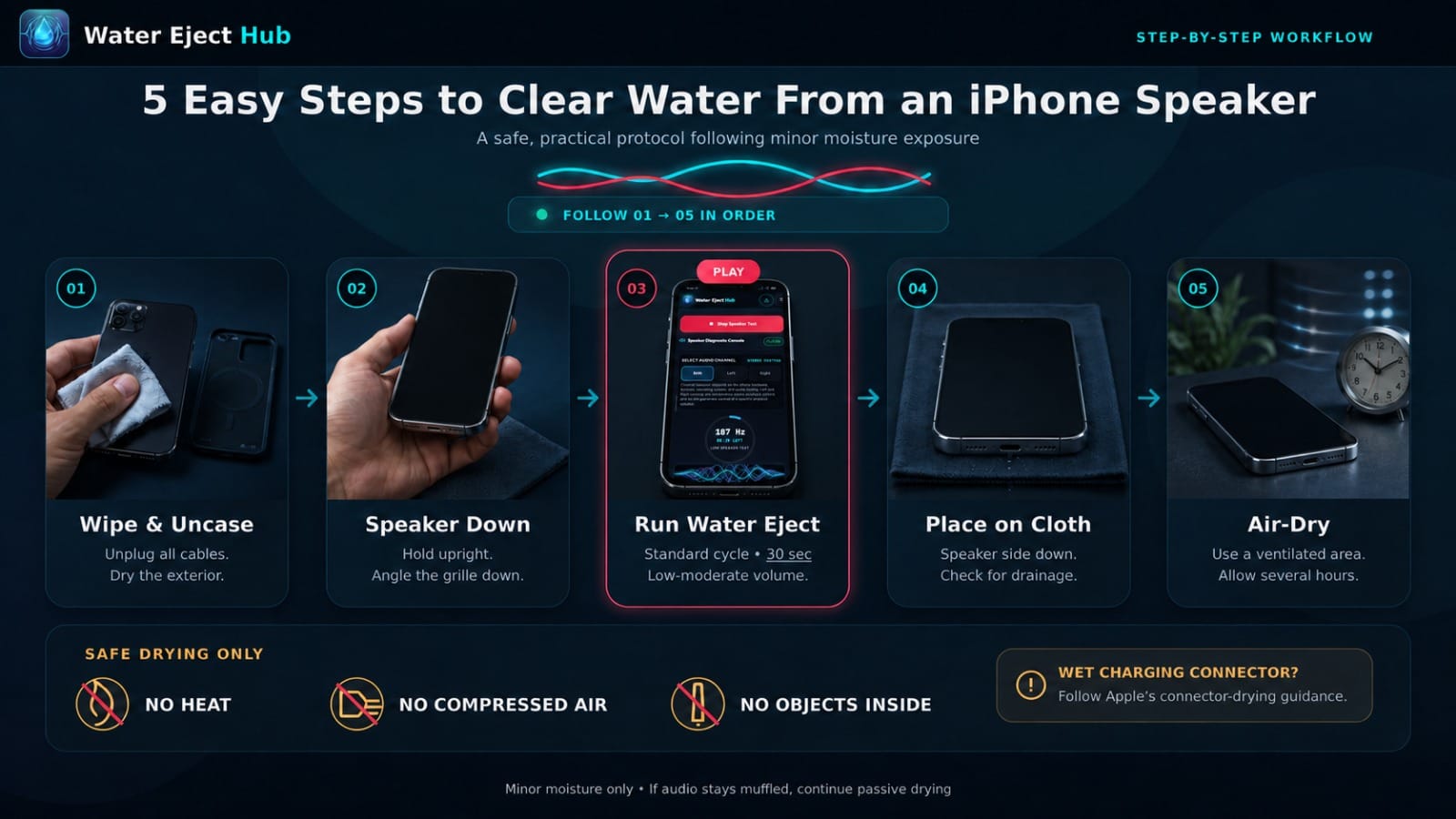
5 Easy Steps to Clear Water From an iPhone Speaker
A safe, practical protocol following minor moisture exposure.
1. Dry Exterior & Remove Case
Unplug all cables. Wipe the iPhone with a clean, soft, lint-free microfiber cloth and remove cases that trap moisture.
2. Position Speaker Downward
Hold the iPhone upright with the bottom speaker grille angled downward over a dry cloth so gravity helps drainage.
3. Play a Water Eject Cycle
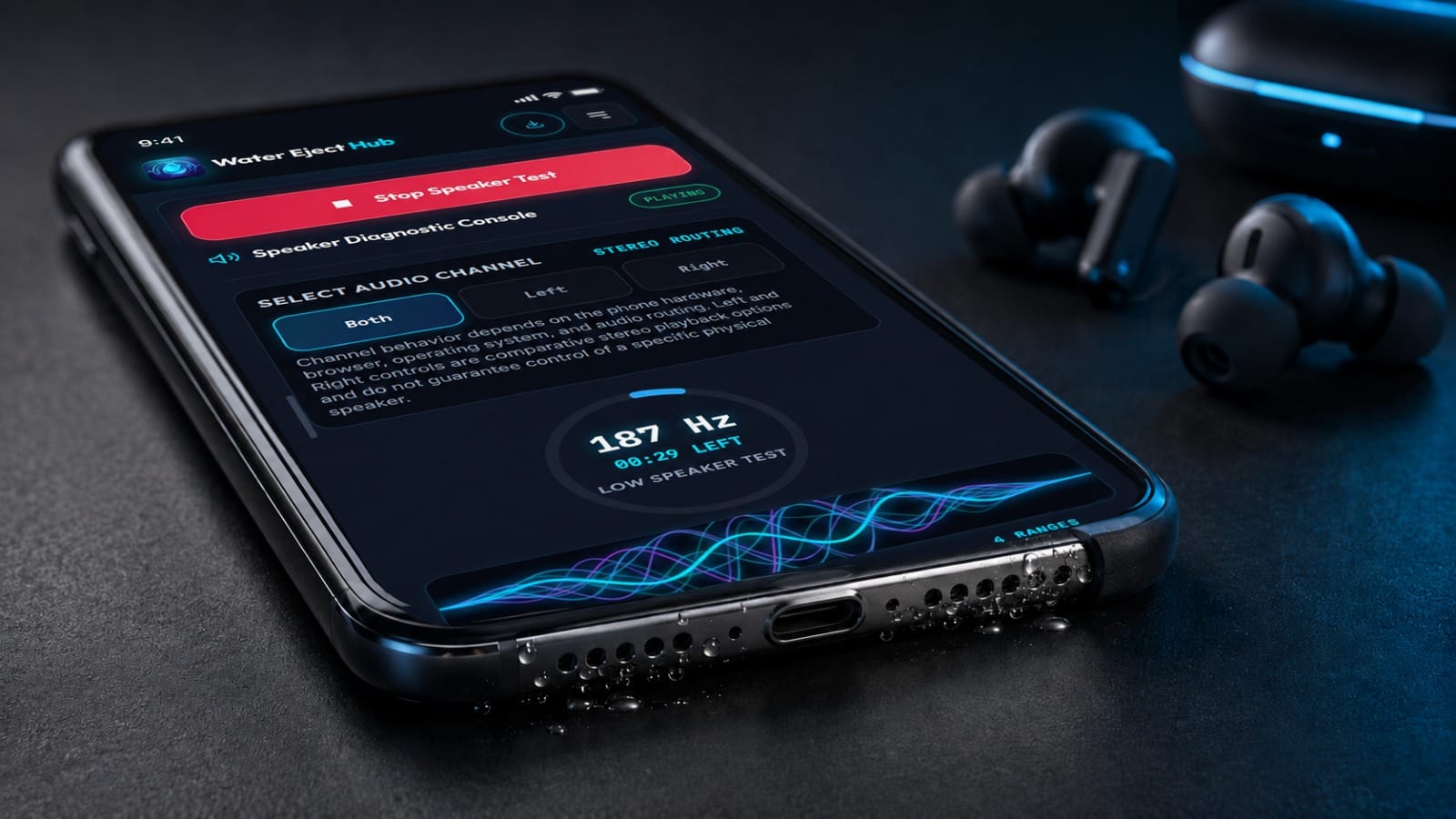
Select the Standard Water Cycle above. Start at a comfortable low-to-moderate volume and let the 30-second cycle run.
4. Place Speaker Side Down
Place the iPhone speaker side down on a clean, lint-free cloth and check whether moisture drains from the speaker area. If the charging connector is wet, follow Apple’s separate connector-drying guidance.
5. Allow Passive Air Drying
Let the device rest in a dry, well-ventilated area. If audio remains muffled, allow several hours of natural drying time.
What Is Water Eject iPhone and How Does It Work?
Understanding how sound vibration interacts with iPhone speaker mesh.
Speaker Diaphragm Vibration
Playing sound causes the iPhone speaker diaphragm to vibrate. In some cases, that movement may help shift small amounts of moisture resting near the external speaker grille. Results vary by device, and sound cannot dry liquid inside the phone or repair hardware damage.
The browser tool changes the generated tone across selectable frequency ranges. These ranges are user-selectable sound profiles rather than Apple-calibrated or manufacturer-approved water-removal settings.
Realistic Boundaries
Sound vibration is designed for surface moisture near a working speaker grille. It cannot dry liquid inside the phone body, evaporate water trapped in charging ports, or repair hardware damage.
Learn more about the universal science on our How Water Ejection Works page.
Browser Water Eject Sound vs Siri Water Eject Shortcut
Comparing direct browser playback with iOS shortcut automations.
Browser Water Eject Tool (This Page)
- Runs instantly in Safari or Chrome without installing files.
- Offers selectable frequency sweeps (Narrow, Standard, Wide).
- Includes direct countdown timers and volume controls.
- Works across any device without iOS Shortcuts app setup.
Siri Water Eject Shortcut
- Requires downloading a third-party shortcut into Apple Shortcuts.
- Runs a pre-programmed low-frequency audio loop.
- Can be triggered via Siri voice command once configured.
- Learn setup steps in our Water Eject Shortcut guide.
iPhone Water Eject Sound Profiles
Three selectable low-frequency sound profiles for comparison after minor moisture exposure.
Narrow iPhone Sweep (150–190 Hz)
A narrower low-frequency sweep available as a first comparison after minor moisture exposure.
Standard Water Cycle (165–240 Hz)
Default selectable low-frequency sweep for comparison after minor moisture exposure.
Wide Speaker Sweep (140–300 Hz)
A wider low-frequency sweep available for comparison across a broader range.
Water in Lightning or USB-C Charging Port
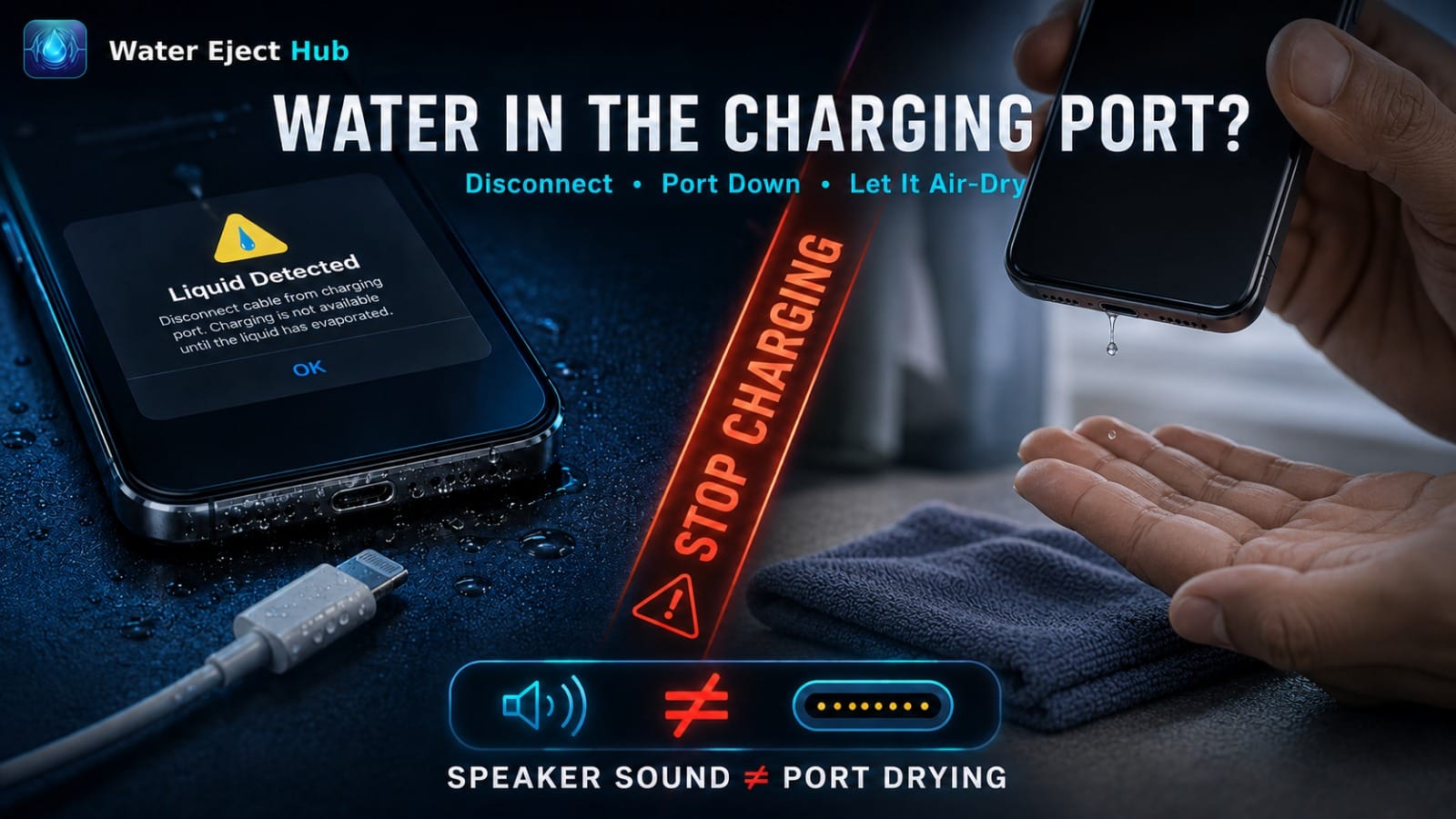
Speaker sound cannot dry a wet charging connector. Follow these precautions.
Liquid Detected Alert
If your iPhone displays "Liquid Detected in Lightning Connector" or "Charging Not Available", disconnect the cable immediately.
Do Not Charge
Charging while pins are wet can cause permanent corrosion or short-circuit damage to the connector and cable.
Allow Airflow
Tap the phone gently against your hand with the port facing down. Allow several hours in a dry area with natural airflow.
Safety, Heat and Hardware Limitations
Important safety boundaries when troubleshooting a wet iPhone.
Volume Safety
Start at a comfortable low-to-moderate volume and increase gradually only if needed. Never force high volumes if audio produces harsh distortion.
When to Stop
Stop playback if the sound becomes harsh, distorted, uncomfortable, or produces unusual rattling or abnormal behavior.
Things to Avoid
Never insert cotton swabs, toothpicks, or paper towels into grilles. Never use hair dryers, compressed air, or ovens.
Official Apple Liquid Exposure Guidelines
Reference official manufacturer instructions for handling wet iPhone hardware.
Liquid in Charging Connector
Review official guidance for handling liquid detected in iPhone connectors.
Water and Splash Resistance
Learn about IP67/IP68 ratings in Apple splash and water resistance guidance.
Speaker Troubleshooting
Explore official steps for troubleshooting iPhone speaker and receiver sound.
Frequently Asked Questions About Water Eject iPhone
Direct, factual answers for iPhone users dealing with wet speakers.
Unplug all cables, wipe the exterior with a microfiber cloth, hold the phone with the speaker facing downward, and play a short water eject sound cycle. Afterward, allow the device to dry naturally in a well-ventilated area.
Low-frequency sound vibration can help dislodge water droplets resting across the external speaker mesh. However, results vary depending on liquid volume and speaker design. Sound cannot dry internal electronics or fix water damage.
There is no single universally guaranteed frequency for every iPhone. This tool provides selectable frequency ranges between 140 Hz and 300 Hz for comparison. These ranges are not Apple-calibrated, manufacturer-approved, or scientifically established as universal water-removal frequencies.
No single frequency is guaranteed to work best on every iPhone. This tool includes 165 Hz within one selectable sweep profile, but that does not make 165 Hz an Apple-recommended, calibrated, or universally effective water-ejection frequency. Different devices may respond differently.
Sound tools vibrate speaker cones, not charging port pins. Do not plug in charging cables while ports are wet. Refer to our Water in Charging Port guide for safety steps.
Both generate low-frequency acoustic vibrations. This browser tool runs directly in Safari without downloading shortcut files, whereas Siri Shortcuts require installation in the iOS Shortcuts app.
Allow the iPhone several hours of natural drying time in a dry, ventilated area. If audio remains muffled or distorted, follow Apple's troubleshooting guidelines or contact Apple Support for service.