
Speaker Cleaner Sound: Help Improve a Muffled Phone Speaker
Use our speaker cleaner sound to test a weak, unclear, or muffled phone speaker with browser-based audio tones and frequency sweeps. The tool helps you compare speaker clarity when light surface moisture or loose dust near the speaker grille may be affecting the sound.
If your phone speaker sounds muffled after minor water exposure, you can also use our water eject tool for moisture-focused testing. No app installation is required, and Speaker Cleaner works directly in your browser for quick and simple speaker testing.
How to Use the Speaker Cleaner Sound
Start by playing familiar audio so you have a clear reference for how your speaker sounds. Then use the speaker cleaner sound at a comfortable low-to-moderate volume, try different test ranges, and compare Left, Right, or Both channels where supported. After each short test, play the same audio again and check whether the speaker sounds clearer, quieter, distorted, or unchanged.
1. Play Normal Audio First
Before starting the speaker cleaner sound, play a familiar song, video, or voice recording. Note any muffled sound, buzzing, crackling, or low volume so you can compare the speaker after the test.
2. Start at Moderate Volume
Start at a comfortable low-to-moderate volume. Increase it gradually only if needed, and stop if the sound becomes harsh, distorted, or uncomfortable.
3. Choose a Test Range
Select Low, Mid, Grille Response, or the broader sweep mode. Try different ranges to hear how your speaker responds across different frequencies.
4. Compare Channels
Test Both, Left, and Right where supported. Listen for differences in volume, clarity, or distortion between channels. Channel controls may not correspond to a specific physical speaker on every device.
5. Re-evaluate Audio
After the test, play the same familiar audio again. Compare it with your first listen and note whether the speaker sounds clearer, unchanged, or more distorted.
What Is a Speaker Cleaner Sound and What Can It Test?
A speaker cleaner sound uses controlled tones and frequency sweeps to help you compare how your phone speaker sounds. It can help you notice muffled audio, buzzing, crackling, low volume, or uneven response, but it cannot diagnose hardware damage or confirm that moisture or dust has been removed.
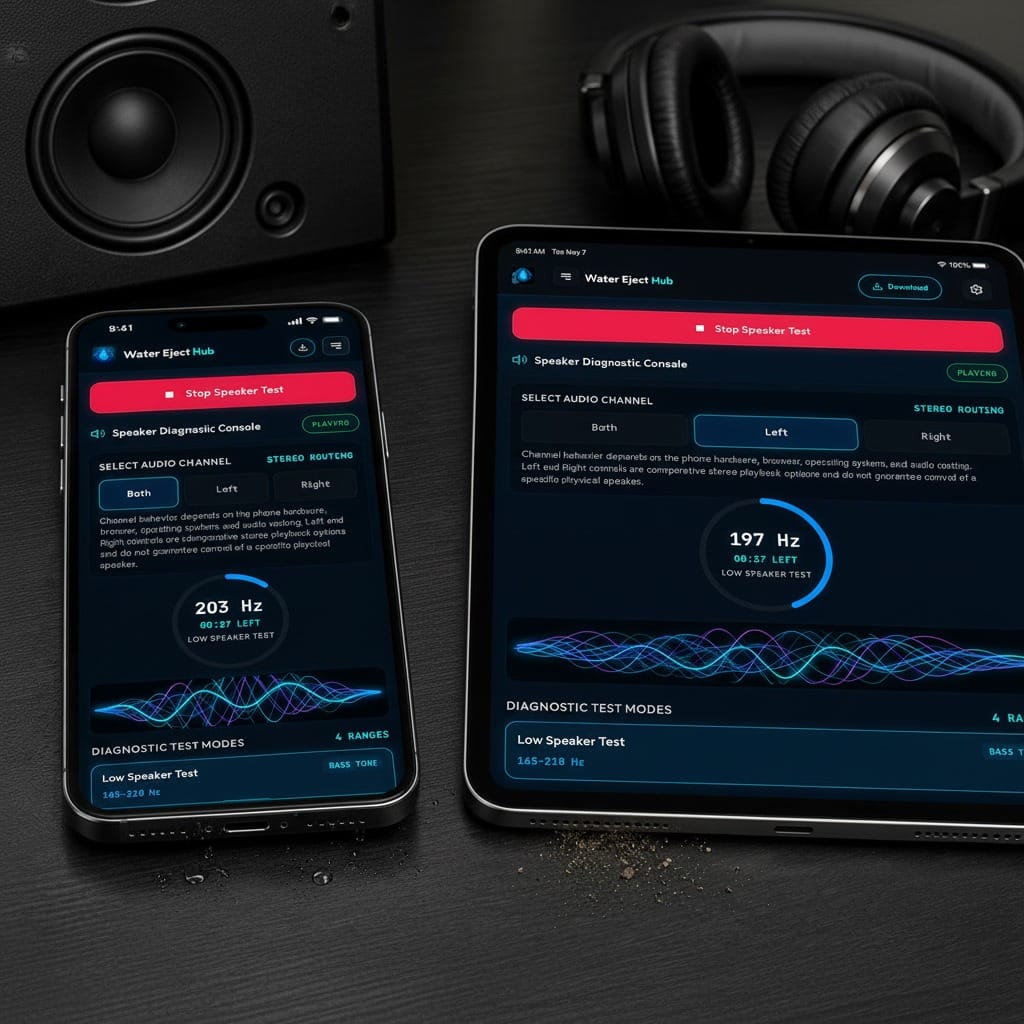
Speaker Cleaner Test Modes and Frequencies
Speaker Cleaner includes several test modes that use different frequency ranges. You can switch between Low, Mid, Grille Response, and a broader sweep to compare how your speaker responds across different tones and identify where changes in clarity or distortion are most noticeable.
Low Speaker Test (165–210 Hz)
Uses lower-frequency tones between 165–210 Hz to compare how your speaker responds in the low range. Listen for muffled sound, weak output, buzzing, or unusual vibration.
Mid Speaker Test (250–320 Hz)
Uses tones between 250–320 Hz to check mid-range speaker response. Compare clarity and listen for buzzing, crackling, or uneven sound across the range.
Grille Response Sweep (180–400 Hz)
Moves gradually through 180–400 Hz to compare speaker response across a wider low-to-mid range. Listen for points where the sound becomes less clear, weaker, or more distorted.
Full Speaker Sweep (300–1200 Hz)
Sweeps through 300–1200 Hz to compare speaker response across a broader range of tones. Listen for noticeable changes in clarity, volume, buzzing, crackling, or distortion.
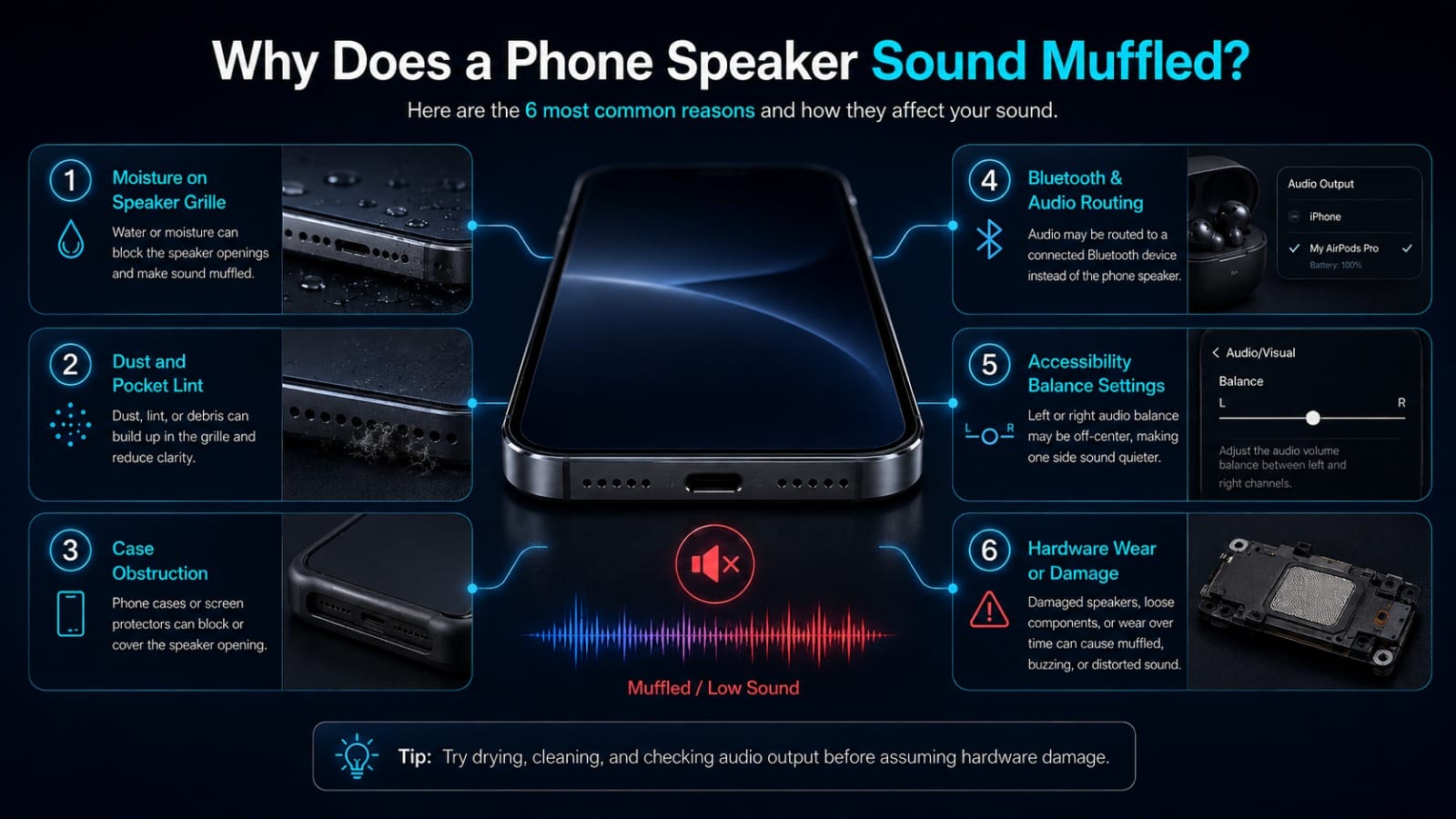
Why Does a Phone Speaker Sound Muffled?
Moisture on Speaker Grille
Light surface moisture around the speaker grille can make audio sound muffled or quieter. Let the area dry naturally and avoid inserting objects into the speaker opening.
Dust and Pocket Lint
Dust or pocket lint can collect around the speaker grille and reduce sound clarity. Gently clean only the outer surface without pushing debris deeper inside.
Case Obstruction
A phone case or screen protector can sometimes partly cover a speaker opening. Remove the case temporarily and play the same audio again to check for a difference.
Bluetooth & Audio Routing
Your phone may be sending audio to Bluetooth earbuds, a speaker, or another connected device. Check the active audio output before testing the phone speaker.
Accessibility Balance Settings
Left and right audio balance settings can make one channel sound quieter than the other. Check your device’s accessibility or audio settings and make sure the balance is centered if appropriate.
Hardware Wear or Damage
A damaged speaker, loose component, or long-term wear can also cause buzzing, low volume, or distortion. Sound tests can help you compare the symptoms, but they cannot diagnose hardware damage.
Speaker Cleaner for iPhone and Android
Speaker Cleaner works in supported mobile browsers on both iPhone and Android devices. You can use the same test modes to compare speaker clarity, volume, and distortion without installing an app.
Testing on Apple iPhone
Open Speaker Cleaner in Safari or another supported browser and play the test at a comfortable volume. Compare normal audio before and after testing, and check that sound is coming from the phone rather than a connected Bluetooth device.
Testing on Android Devices
Open the tool in a supported Android browser and select a test range. Listen for changes in clarity, buzzing, or uneven output, and confirm that the phone speaker is selected as the active audio output.
Speaker Cleaner vs Water Eject: Which Tool Should You Use?
Use Speaker Cleaner when you want to compare speaker clarity, frequency response, or channel output. Use the Water Eject tool when your main concern is light moisture around the speaker after minor water exposure.
Speaker Cleaner (This Tool)
Speaker Cleaner is designed for diagnostic listening. It provides different frequency ranges and channel controls so you can compare how your speaker responds before and after testing.
Water Eject Tool
The Water Eject tool is intended for moisture-focused playback after minor water exposure. It does not repair water damage or confirm that all moisture has been removed.
Safety, Limitations and When to Stop Testing
Use Speaker Cleaner at a comfortable volume and keep each test short. The tool can help you compare sound, but it cannot diagnose hardware damage, repair a speaker, or confirm that moisture or debris has been removed.
Avoid Extreme Volume
Do not use maximum or uncomfortable volume during testing. Start lower and increase gradually only if needed to hear the test clearly.
When to Stop Immediately
Stop the test if you hear harsh distortion, strong rattling, unusual mechanical noise, or if the sound becomes uncomfortable to listen to.
No Sharp Tools
Do not insert pins, needles, or other sharp objects into the speaker grille. They can push debris deeper or damage the speaker mesh and internal components.
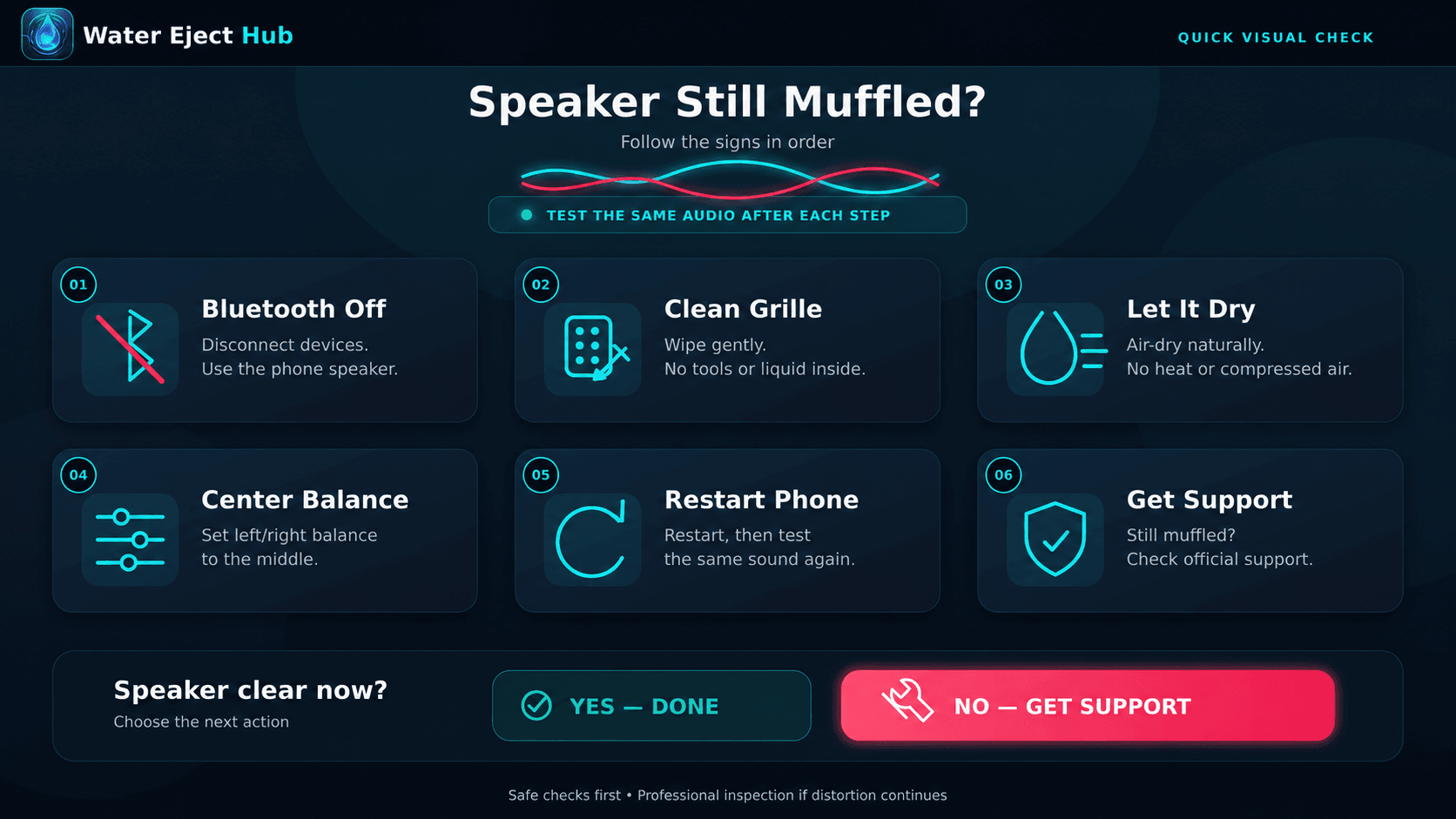
Troubleshooting a Speaker That Still Sounds Muffled
If your speaker still sounds muffled after testing, check simple settings and external causes before assuming there is hardware damage. Work through the steps below and compare the same audio after each change.
1. Check Audio Routing & BT
Turn off or disconnect Bluetooth devices and confirm that audio is playing through the phone speaker. Connected earbuds, speakers, or cars can change where the sound is sent.
2. Clean Grille Surface Gently
Check the outside of the speaker grille for visible dust or lint. Wipe the surface gently without pushing tools, liquid, or debris into the opening.
3. Allow Passive Drying Time
If the phone was recently exposed to light moisture, allow it to dry naturally in a well-ventilated area. Avoid heat, compressed air, or inserting objects into the speaker opening.
4. Check Audio Balance Settings
Review your device’s left and right audio balance settings. An off-center balance can make one channel appear quieter than the other.
5. Restart Your Phone
Restarting the phone can clear temporary audio-routing or software issues. After the restart, play the same familiar audio again and compare the result.
6. Official Manufacturer Guidance
If the problem continues, check the official support guidance for your phone manufacturer. Persistent distortion, very low output, or sound problems after significant water exposure may require professional inspection.
Frequently Asked Questions About Speaker Cleaner Sound
It can help you test and compare a muffled or unclear speaker using controlled tones and frequency sweeps. Results vary, and the tool cannot repair hardware damage or guarantee that moisture or debris has been removed.
There is no single best frequency for every phone. Try the available test ranges at a comfortable volume and compare how your speaker responds across them.
Sound may cause loose surface debris to vibrate, but it cannot reliably remove compacted dust. If visible debris is present, gently clean only the outer grille surface.
Yes, you can use Speaker Cleaner on iPhone and Android in supported browsers. Available audio and channel behavior may vary by device and browser.
A quieter side can result from audio balance settings, channel routing, grille blockage, device design, or a speaker problem. Channel controls may also behave differently depending on the browser and device.
Check Bluetooth routing, the speaker grille, audio balance settings, and whether the phone needs more drying time after light moisture exposure. If the issue continues, follow your manufacturer’s support guidance or consider professional inspection.